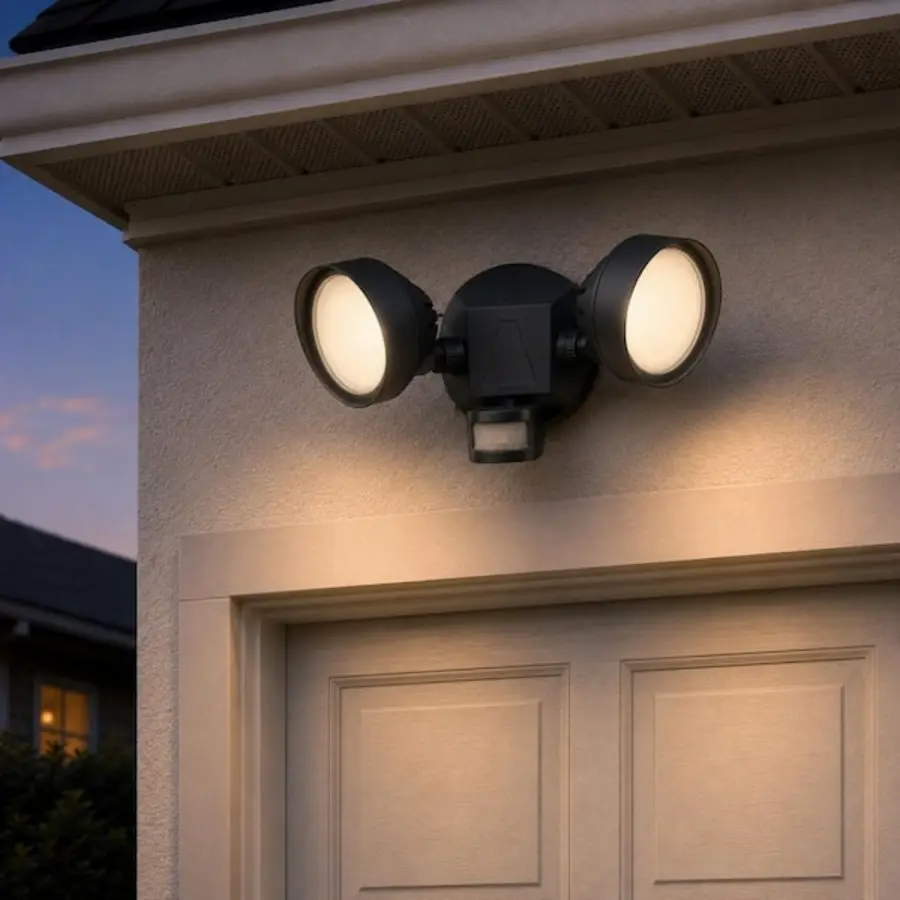
If outdoor smart GU10 bulbs keep going offline, the cause is usually not the GU10 format itself. It is more often a weak wireless path, interrupted power, an unsuitable outdoor fitting, or several control systems competing for the same lights. When multiple bulbs fail together, start by looking for a shared cause: the same circuit, switch, router coverage area, hub, or automation.
The most reliable solution is usually a combination of better network or hub placement, continuous power to the smart lamps, weather-suitable fixtures, and a manual fallback that does not depend on an app. Do not reset every bulb first. A reset may restore control briefly while hiding the condition that caused the disconnections.
First, identify the pattern
The timing and grouping of failures can narrow the diagnosis quickly. Keep a simple note for several days: which lamps go offline, when it happens, what the weather was like, and whether the physical light still works.
| What you see | More likely cause | Useful next check |
|---|---|---|
| All outdoor bulbs disappear at once | Router, hub, internet service, shared power supply, or an automation issue | Check indoor smart devices and other Wi-Fi devices at the same time |
| Only bulbs at the far end of the garden fail | Weak wireless or mesh coverage | Test signal and move the router, hub, or a suitable network node temporarily |
| One fitting repeatedly loses its bulb | Socket contact, fixture condition, heat, moisture, or a failing bulb | Swap that bulb with a known reliable location |
| Bulbs are offline after storms or power cuts | Power interruption and unsuccessful reconnection | Check whether the wall switch, breaker, timer, or outdoor circuit has interrupted power |
| The app says offline but the lamp follows a wall switch | App, cloud, hub, or network path problem rather than a lamp failure | Try local control, another controller, or the manufacturer’s app |
| Lights turn on or off unexpectedly before becoming unavailable | Automation, motion sensor, timer, or switch conflict | Review schedules and any motion or daylight controls |
A group of multiple smart GU10 bulbs offline at the same time is an especially useful clue. It points away from several bulbs failing independently and toward the network, power arrangement, or control setup they share.
1. Check whether the bulbs still have continuous power
A smart bulb needs power even when you want it to appear “off” in an app. Turning off the wall switch, a timer, a photocell, or a switched outdoor outlet cuts its power completely. The bulb then cannot receive a command, and it may take time to reconnect when power returns.
Check for these common arrangements:
- A normal wall switch is routinely used to turn the smart lights off.
- A built-in fixture sensor or external photocell cuts supply power at dawn.
- A landscape-lighting transformer, timer, or smart relay switches the circuit.
- A loose switch, tripped protective device, or intermittent outdoor connection interrupts the circuit.
- An automation switches both the bulb and a separate smart switch or relay.
For smart lamps, choose one primary method of control. In many installations, that means leaving the supply on and using the bulb’s app, hub, or compatible smart control for routine switching. If the wall control must remain useful, use a control method designed to preserve power to the lamps, or keep a clearly understood manual fallback.
Do not open electrical fittings or alter wiring unless you are competent to do so. Outdoor electrical work has additional moisture and safety considerations; verify current local requirements and consult a qualified electrician where appropriate.
2. Rule out weak Wi-Fi coverage outdoors
Wi-Fi smart bulbs unreliable outdoors are often dealing with a signal that is only just adequate. Exterior walls, brick, stone, metal cladding, foil-backed insulation, glazing, and dense planting can weaken a signal between the router and the fitting. A phone may show usable Wi-Fi near the door while a small bulb radio inside a metal fixture has a much less reliable connection.
Test the likely network issue before buying anything:
- Stand close to each affected fixture with a phone connected to the same Wi-Fi network used by the bulbs.
- Compare coverage near reliable bulbs and unreliable bulbs.
- Temporarily move the router, hub, or a compatible mesh node closer to the affected side of the house.
- Watch whether reliability improves over several evenings, not only immediately after a restart.
- If possible, test one affected bulb in an indoor socket closer to the network equipment.
Many Wi-Fi bulbs use the 2.4 GHz band, which generally reaches farther than 5 GHz but can still be weak at the garden edge. Check the bulb’s documentation before changing router settings. Some devices require a 2.4 GHz network during setup; others may have particular security or network-name limitations.
Avoid placing a Wi-Fi access point or mesh node outdoors unless the equipment and its installation are specifically suitable for that location. A well-positioned indoor node near the exterior wall may be enough.
3. Check the hub or border-router location for Zigbee, Thread, or Matter bulbs
Not every smart GU10 bulb uses Wi-Fi. Some use Zigbee, Thread, or another hub-based system. In that case, the router’s Wi-Fi signal may not be the direct issue. The important connection is between the bulbs and their hub, bridge, or Thread border router.
Start with the controller’s location. A hub in a utility cupboard, behind a television, beside network equipment, or at the opposite side of the house can have a poor path to outdoor fixtures. Moving it to a more central and open position can be more useful than repeatedly re-pairing bulbs.
Mesh systems may improve when there are enough compatible, mains-powered devices between the controller and the outdoor lamps. But do not assume that every smart bulb extends every type of mesh. Whether a device acts as a repeater or router depends on its radio protocol and product design.
If one outdoor lamp is especially distant, test it closer to the hub first. If it stays connected indoors but becomes unstable outdoors, range or fixture-related interference is more likely than a defective lamp.
4. Inspect the fitting and the outdoor environment
A bulb may be marketed for outdoor use only under certain conditions, and the fixture itself matters as much as the bulb. A GU10 lamp inside a poorly sealed fitting can be exposed to condensation, wind-driven rain, dirt, insects, or corrosion. A fully enclosed fitting can also retain heat, which may shorten component life or affect performance.
Without disassembling live equipment, look for visible warning signs:
- Condensation inside the lens or on the bulb.
- Rust, discoloration, cracked seals, or damaged cable entries.
- A bulb that flickers, dims, or fails to illuminate even when power is present.
- A fitting that is unusually hot after operating.
- Repeated problems after heavy rain, frost, or strong sun.
Check the bulb and fixture instructions for their intended environmental use, enclosure limitations, and operating conditions. The fixture, lamp, lampholder, and installation all need to be suitable for the actual exposure. For more background, see our guide to IP ratings for lights.
If moisture is visible inside a fitting, or you suspect a damaged connection, stop treating it as an app problem. Switch off the relevant circuit if it is safe to do so and arrange inspection by a qualified electrician.
5. Use the swap test to separate a bad bulb from a bad location
A controlled swap is one of the clearest outdoor smart light connectivity troubleshooting methods.
Move one unreliable bulb to a fixture where another smart bulb has been consistently reliable. Then place the reliable bulb in the troublesome fitting. Give both time to reconnect and observe them through several normal on/off cycles.
- If the problem follows the bulb, the bulb itself, its firmware, or its pairing may be the issue.
- If the problem remains at the same fitting, investigate coverage, power, heat, moisture, or socket condition at that location.
- If both become unreliable only when installed together outdoors, look for a shared network or automation cause.
Do this one change at a time. Replacing bulbs, resetting the router, changing automations, and moving the hub all on the same day makes it difficult to know what solved the problem.
6. Simplify automations and controller links
Smart outdoor lights not responding can appear to be a connectivity fault when the actual problem is conflicting logic. A bulb might be controlled by its own manufacturer app, a voice assistant, a home platform, a motion sensor, a photocell, and a schedule. Each system may report a different state or send competing commands.
Temporarily disable nonessential routines for a few days. Keep one controller as the source of truth, then add automations back individually. Check especially for:
- Sunrise and sunset schedules that overlap.
- Motion-triggered routines that turn off lights after a short delay.
- Legacy scenes that still include removed or renamed bulbs.
- A smart switch, relay, or sensor that removes power from smart bulbs.
- Duplicate bulbs or old entries left behind after a reset.
If a motion sensor is part of the setup, make sure its role is clear: it can trigger a smart-light scene, or it can control a conventional light circuit. Combining both approaches without planning often creates confusing results. Our guide to outdoor motion light manual override explains the control tradeoffs in more detail.
7. Restart and reset in the right order
A power cycle can be useful, but it should be a diagnostic step rather than a routine cure. If every affected bulb returns briefly after a restart and then drops again, the underlying issue is still present.
A sensible order is:
- Confirm that the lamps have stable power.
- Restart the router or smart-light hub if it is behaving abnormally.
- Wait for the network and controller to become fully available.
- Restore power to the bulbs and allow time for reconnection.
- Update the hub, app, and bulb firmware if the manufacturer provides an update.
- Reset and re-pair only the specific bulb that remains unreliable after the broader checks.
Before resetting, note the bulb’s room assignment, scenes, schedules, and automations. A reset can remove those settings and may create duplicate devices in a connected-home platform.
Build a dependable manual fallback
Outdoor safety and everyday access should not rely entirely on a cloud service, phone battery, or wireless connection. Plan a way to turn on essential exterior lighting manually when smart control is unavailable.
The appropriate option depends on the installation, but the principle is simple: keep a clear, reliable physical means of lighting the entrance, path, or patio. This may be a conventional separately controlled light, a carefully planned wall control, or another lighting circuit that does not depend on the smart GU10 bulbs.
Do not solve an unreliable smart-bulb setup by repeatedly switching a circuit with equipment that was not selected or configured for that use. If you are redesigning switched outdoor lighting, ask an electrician to assess the existing circuit, fittings, and intended controls.
When to stop troubleshooting and call for help
Contact a qualified electrician rather than continuing with app or network fixes if you find water inside a fitting, scorch marks, cracking, repeated tripping, damaged insulation, buzzing, persistent flicker, or a socket that does not hold the bulb securely. These can indicate a fixture or electrical problem rather than a smart-lighting issue.
If the lights work electrically but keep disappearing after you have tested coverage, continuous power, fixture condition, and simplified automations, contact the bulb manufacturer with the model, firmware version, controller type, and a record of when failures occur. That information is more useful than reporting only that the bulbs are offline.
The key is to diagnose the shared layer first. For outdoor smart GU10 bulbs, reliable control depends on a stable power supply, an appropriate outdoor fitting, a strong communication path, and one understandable control strategy. Once those basics are sound, smart features become much less likely to get in the way of ordinary outdoor lighting.
References
- Ikea GU10 light bulbs - keep going offline - Matter/Thread. (n.d.). https://community.home-assistant.io/t/ikea-gu10-light-bulbs-keep-going-offline/1012757
- Troubleshooting Common GU10 LED Bulb Problems and .... (n.d.). https://tecolux.com/troubleshooting-common-gu10-led-bulb-problems-and-how-to-fix-them-221197.html
- Why Smart Lights Stop Responding Suddenly. (n.d.). https://www.mistersparky.com/myrtle-beach/about-us/blog/2026/may/why-smart-lights-stop-responding-suddenly
- 7 Best Smart Light Bulbs with WiFi [2026] – No Hub Required!. (n.d.). https://www.youtube.com/watch?v=40j2MBOYlhU
- Why are my smart light bulbs going offline and how to fix it?. (n.d.). https://www.facebook.com/groups/ewelinkandsonoff/posts/1538999733333567
- CSH-GU10RGB5W: Troubleshooting Connection Issues. (n.d.). https://help.connectsmarthome.com.au/support/solutions/articles/51000430656-csh-gu10rgb5w-troubleshooting-connection-issues
- Why do smart bulbs go offline?. (n.d.). https://www.quora.com/Why-do-smart-bulbs-go-offline
- Smart bulbs on one fitting keep showing offline. (n.d.). https://www.reddit.com/r/googlehome/comments/1qflpo3/smart_bulbs_on_one_fitting_keep_showing_offline