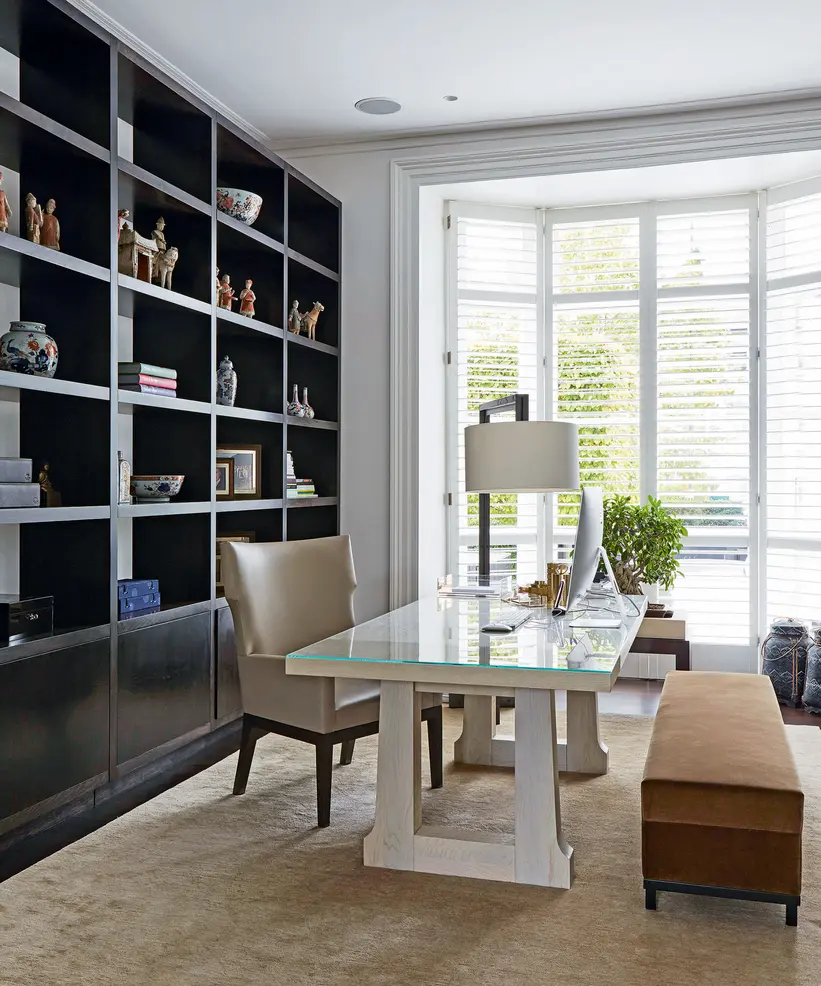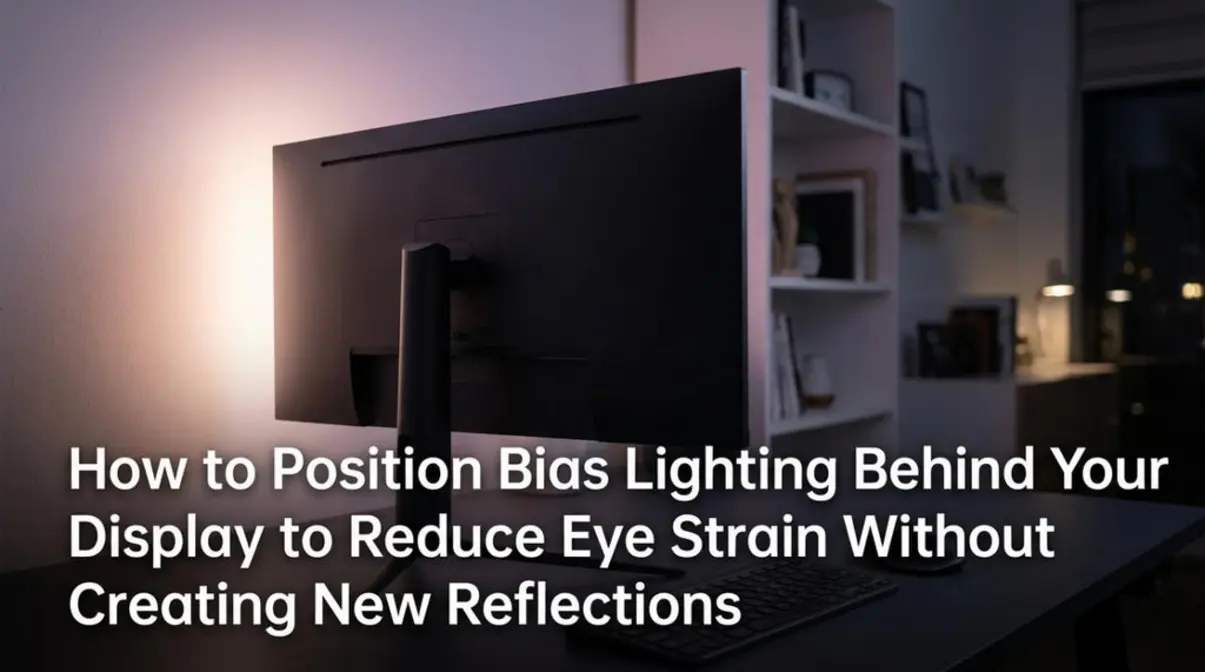
A monitor should not be the only bright object in a dark room. For most home offices and gaming setups, the simplest fix is monitor bias lighting for eye strain: a dim, indirect light behind the display that softly brightens the wall around it. It reduces the abrupt brightness difference between the screen and its surroundings without putting a lamp’s reflection on the panel.
The goal is not to make the room bright. The wall behind the monitor should be gently visible while the screen remains the visual focus. If the backlight becomes a feature you notice more than the display, it is probably too bright.
What monitor bias lighting does
Bias lighting is light placed behind a monitor and aimed at the wall, rather than at the user. It raises the brightness of the immediate viewing area, so a bright document, game scene, or white web page is not surrounded by near-total darkness.
This can make long screen sessions feel more comfortable, particularly in the evening or in a windowless office. It may also improve the perceived depth of dark on-screen areas because your eyes are not adapting to a completely black room around the display. It is a comfort measure, not a cure for every form of digital eye strain. Dry eyes, poor screen positioning, uncorrected vision, long uninterrupted sessions, and an overly bright display can still cause discomfort.
A useful companion adjustment is to lower an excessively bright monitor. Bias lighting cannot fully compensate for a display that feels harsh at normal viewing distance. The screen and its surroundings should work as a balanced pair.
Bias light versus task light
These two lighting jobs are easy to confuse, but they solve different problems.
| Lighting type | Where it goes | Main job | Key rule |
|---|---|---|---|
| Bias light | Behind the monitor | Softens the contrast between screen and room | Keep the source out of sight and aim it at the wall |
| Task light | Over or beside the desk | Lights a keyboard, notebook, papers, or other work | Keep direct light off the screen |
| General ambient light | Elsewhere in the room | Makes the room comfortably navigable | Avoid a bright fixture in the monitor’s reflective angle |
If you mostly work with documents, sketch on paper, take notes, or handle physical equipment, a bias light alone is not enough. Add a separate task light for the desk surface. If your only need is to stop the screen from feeling like a bright rectangle in an otherwise dark room, a rear monitor light may be all you need.
For a broader room plan, see our guide to home office lighting.
How to set up lighting behind a computer monitor
1. Start with the wall behind the display
Bias lighting works best when the monitor sits reasonably close to a wall or other broad, matte surface. A pale neutral wall reflects the glow evenly, but the approach can still work on darker paint. You may simply need a little more output to make the wall softly visible.
It is less effective with a monitor floating in the middle of a room, placed in front of a window, or backed by a glossy surface. In those cases, use low-level ambient light from elsewhere in the room and prioritize glare control.
2. Put the light on the rear of the monitor
An LED strip is common, but it is not the only option. A small indirect lamp behind or just below the display can also work if the bulb and bright opening are concealed from your normal seated position.
For a strip, place it on the rear panel of the monitor, set back from the outer edge. Aim the LEDs toward the wall. Avoid running a strip where individual diodes are directly visible from your chair; visible points of light can be distracting and may create their own glare.
If your monitor is on an arm, make sure the cable has enough slack for its full range of movement. Do not pinch cables under a stand or route them where they can catch when the screen is raised, lowered, or rotated.
3. Begin at the lowest usable brightness
Turn the bias light on at its lowest setting, then view the monitor normally for a few minutes. Increase the output only until the wall immediately behind and around the screen has a calm, low-level glow.
A good result looks subtle:
- The wall is no longer lost in darkness.
- The monitor still looks brighter than its background.
- You do not see a harsh ring of light around the display.
- The glow does not spill far enough to light the whole room.
If the wall looks brighter than a typical document background on screen, or if your attention keeps drifting to the wall, reduce the setting. Guidance from KTC similarly emphasizes beginning low and increasing only until the wall is softly visible.
4. Choose a light color that suits the work
For general office work, a neutral white tends to be the least distracting choice. It gives the wall a natural-looking glow without strongly tinting the area around the screen.
If you edit photographs, video, graphics, or other color-sensitive material, use a neutral daylight-like white near 6500K and avoid colored effects. This aligns more closely with common display white-point conventions and makes it easier to judge the apparent color of the screen. KTC notes this distinction between neutral white for color-critical viewing and RGB light for mood lighting.
Warm white can be pleasant for late-night casual use, but it changes the color context around the display. RGB lighting is fine when atmosphere is the point, especially for gaming, but avoid saturated colors when accuracy matters. Fast-changing color effects are also a poor choice for focused work because they continually pull attention away from the screen.
5. Recheck for reflections from your seated position
A backlight should not create screen glare because it faces away from you. But other lights in the room can still reflect in the panel once you change the surrounding brightness.
Sit in your normal position with a dark screen or dark image displayed. Look for reflected lamps, windows, bright ceiling fixtures, or LED points. Move the lamp, turn it away, lower it, or diffuse it rather than accepting a reflection in the center of the display.
This is especially important with glossy or semi-gloss screens. A matte monitor is more forgiving, but any bright source at the wrong angle can still be visible.
When a desk lamp is the better choice
Use a desk lamp, rather than relying only on a monitor backlight, when you need to see objects on the desk. This includes reading printed pages, handwriting, keyboard work in a very dim room, assembling small items, or video calls where your face needs some light.
Place the lamp to the side of the screen, not directly in front of it. Aim it down toward the work surface and keep the bulb, LED panel, or bright shade outside your direct line of sight. A lamp with an adjustable head and a dimmer makes this easier.
For right-handed writing, many people prefer the task light on the left to reduce hand shadows; left-handed users often prefer the reverse. The exact side matters less than keeping light off the display and preventing a bright exposed source from shining into your eyes.
A monitor light bar can also serve as task light if it directs illumination onto the desk while shielding the screen from direct spill. It is not automatically a substitute for bias lighting, though. Some designs include a rear-facing component for that purpose; others light only the desk.
Common mistakes that create glare or discomfort
Making the backlight too bright
The most common error is turning the strip up until it functions as room lighting. Bias light should support the display, not compete with it. A bright halo can reduce the sense of image contrast and make the screen feel dim by comparison.
Mounting LEDs where you can see them
Bare LED dots at the top or sides of a monitor can be more distracting than a dark wall. Reposition the strip farther back, use a diffuser where appropriate, or choose another indirect source.
Using a lamp pointed toward the monitor
A desk lamp pointed upward or across the screen may illuminate the room, but it also increases the risk of reflected glare. Keep task lighting aimed down at the desk and away from the panel.
Leaving monitor brightness at an uncomfortable default
If white pages feel piercingly bright, lower the monitor brightness before increasing room light. The display should be comfortable for sustained reading, not set to its highest possible output. The discussion of bias lighting on Coding Horror makes the same practical point: indirect surrounding light works best alongside a reasonably set display.
Treating decorative RGB effects as functional bias lighting
A static, dim color can be enjoyable for gaming. Constant color changes, pulsing effects, or a very saturated glow are not ideal for focused work or accurate color judgment. Use a steady neutral setting when comfort and clarity are the priorities.
A simple setup for a dark home office
For most people, this is enough:
- Lower the monitor from an overly bright setting to a comfortable level.
- Add a dim, indirect light behind the monitor.
- Set it to neutral white for work, or use a calm static color for casual gaming if preferred.
- Adjust until the wall is softly visible but not visually prominent.
- Add a side-positioned desk lamp only if you need to read or work on the desk itself.
- Check the screen for reflections at your normal seated height.
If the room still feels uncomfortably dark away from the desk, add a dim floor lamp or wall-directed ambient light behind or beside you, rather than switching on a bright overhead fixture. Keep it low enough that it does not reflect in the monitor. This layered approach gives you useful desk light, comfortable surroundings, and a screen that remains easy to see.
For more help matching light color across the room, see mixing light color temperatures in the same room.
References
- Position Bias Lighting to Reduce Eye Strain & Glare. (n.d.). https://us.ktcplay.com/blogs/support-tips/how-to-position-bias-lighting
- Bias Lighting. (n.d.). https://blog.codinghorror.com/bias-lighting
- Bias Lighting for Gaming: Reduce Eye Strain Without Flattening the Roo – Divoom International. (n.d.). https://divoom.com/blogs/gaming-room/bias-lighting-gaming-reduce-eye-strain
- What is Bias Lighting for Monitors and Why You Should Need One? | BenQ US. (n.d.). https://www.benq.com/en-us/knowledge-center/knowledge/behind-monitor-lighting.html
- What is Bias Lighting and Why Do I Need It? | Super Bright LEDs. (n.d.). https://www.superbrightleds.com/blog/ins-outs-led-bias-lighting.html
- Better Gaming, Less Eye Strain: How Bias Lighting Can .... (n.d.). https://nanoleaf.me/en-us/blogs/general/better-gaming-less-eye-strain-how-bias-lighting-can-upgrade-your-setup
- RGB Bias Lighting to Reduce Eye Fatigue | Eureka Ergonomic. (n.d.). https://eurekaergonomic.com/blogs/eureka-ergonomic-blog/rgb-bias-lighting-reduce-eye-fatigue
- Ambient lighting (bias lighting) for monitors - PC Monitors. (n.d.). https://forum.pcmonitors.info/topic/ambient-lighting-bias-lighting-for-monitors